Overview
This guide explains how to increase storage for an existing computer using the Softdrive Dashboard.
Prerequisites
- Have a computer already configured.
- Have a Softdrive Admin account.
Index
- Log in to the Softdrive Dashboard
- Locate the computer
- Open storage settings
- Increase storage
- Video walkthrough
Content
Steps to Add More Storage
1) Log in to the Softdrive Dashboard
- Open a web browser and go to:
https://softnet.softdrive.co/ - Log in using your administrator credentials.
2) Locate the Computer
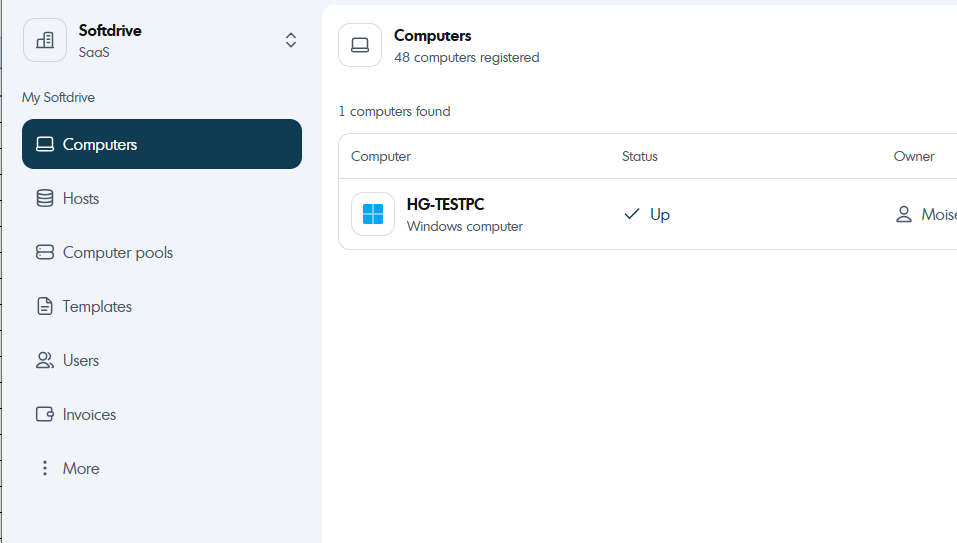
- Navigate to the Computers tab.
- Use the Search option to find the computer that requires additional storage.
- Click the computer to open its Details page.
3) Open Storage Settings
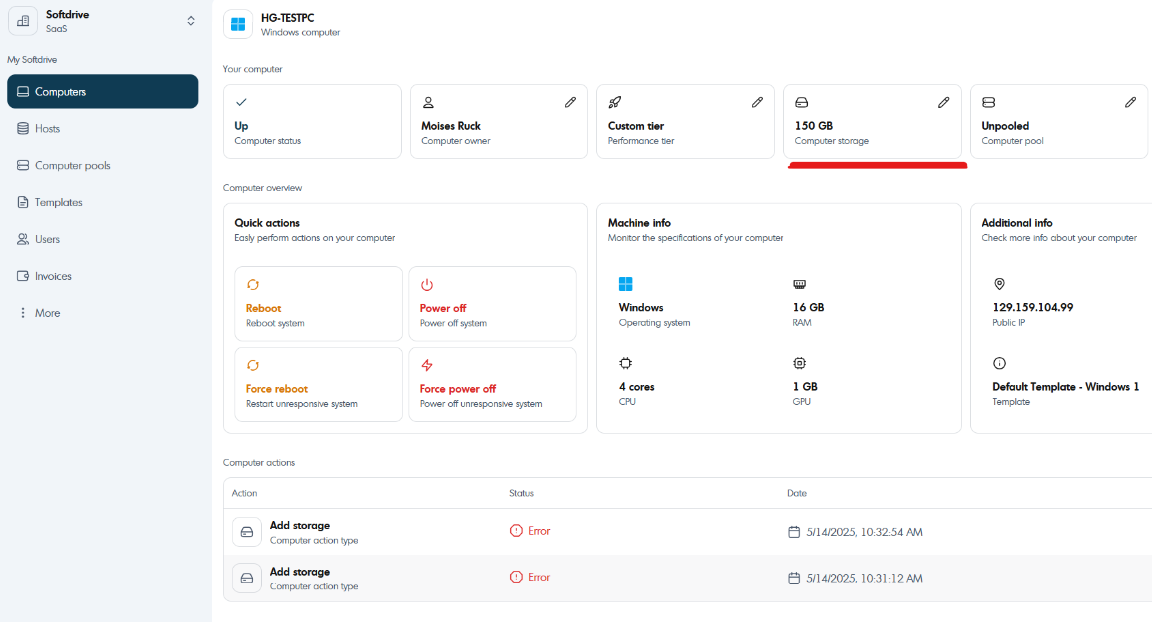
- On the Computer Details page, locate the Storage section.
- Click Storage to view available options.
4) Increase Storage
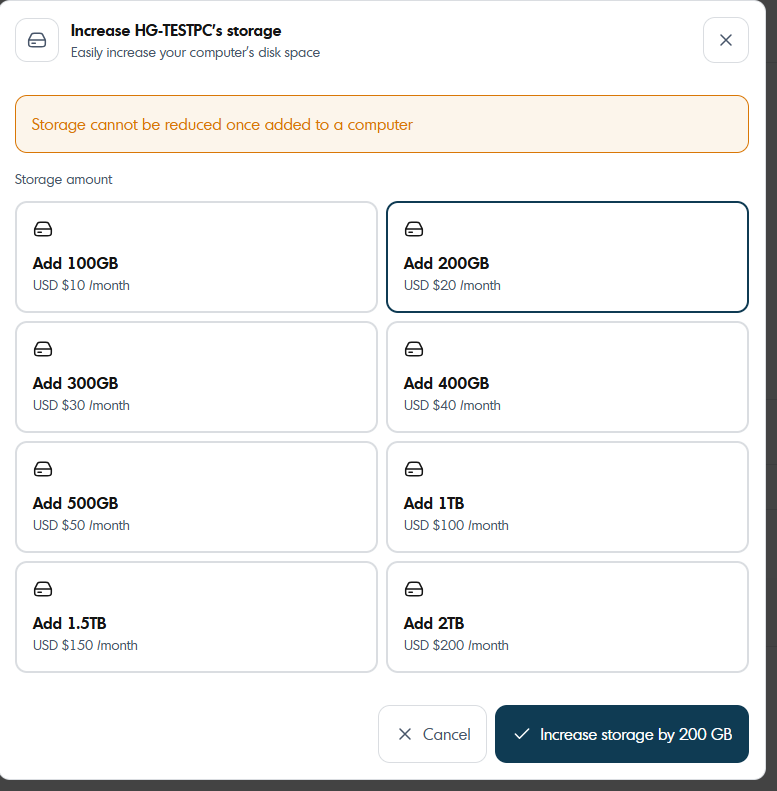
- Select the desired storage size.
- Click Increase to apply the change.
The storage expansion process may take a few moments to complete.
Video walkthrough
For more reference, see this video:
Was this article helpful?
That’s Great!
Thank you for your feedback
Sorry! We couldn't be helpful
Thank you for your feedback
Feedback sent
We appreciate your effort and will try to fix the article