Overview
Softdrive’s Computer Fleets are a dynamic pool of virtual computers designed to automatically return to their default state after a user signs out, shuts down the cloud PC, or if the PC remains idle for a preconfigured time. This non-persistent environment ensures that every session starts from the original state, helping keep the system secure, reliable, and free from residual data or configuration changes. Fleets are ideal for organizations with rotating staff or continuous shift coverage, allowing multiple users to share resources without compromising performance while reducing maintenance overhead and delivering a consistent user experience across the entire fleet.
- Computer fleets can be created and configured directly from the Softnet dashboard.
- Idle timers can be set to automatically disconnect or shut down sessions after a defined period of inactivity.
- Computer fleets can be dynamically adjusted or modified as needed.
- Computer fleets can be configured to join a domain automatically when they are started.
Index
- Creating computer fleets
- Accessing and managing fleets
- Deleting a fleet
- Accessing fleets from the Softdrive launcher
Content
1. Creating computer fleets
Log in to the Softdrive Dashboard
- Open a browser and go to: https://softnet.softdrive.co/
- Log in with your administrator or user credentials.
Navigate to the Fleets tab under the More section.
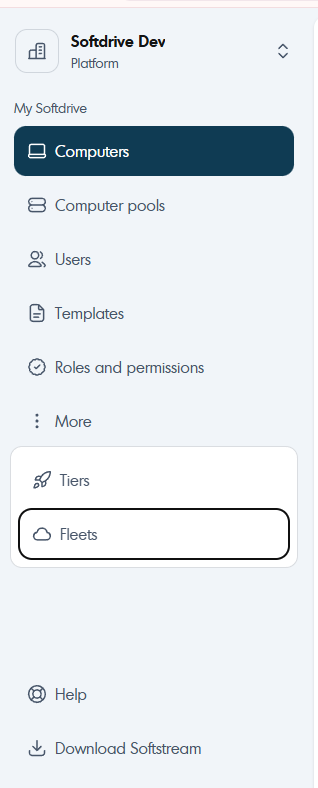
On the Fleets screen, click Create in the top-right corner.

Choose the desired settings for your computer fleet.

The available settings are:
- Name: Provide a name for the fleet template.
- Operating System: Select the OS to be used with your fleet PCs.
- GPU or CPU only: Choose whether the fleet requires GPU resources or CPU-only.
- Performance tier: Select the resource profile (CPU/RAM/GPU) for the fleet.
- Region: Select the bare-metal host location for your fleet.
- Initial state: Assign a previously created template to your fleet machines.
- Edit schedule: Set when fleet computers can operate.
Note: Timings cannot overlap and must include a 1-hour delay between adjacent schedules.
- Number of computers to create: Enter how many computers will be part of this fleet.

When finished, click Create fleet.

2. Accessing and managing computer fleets
Log in to the Softdrive Dashboard
- Open a browser and go to: https://softnet.softdrive.co/
- Log in with your administrator or user credentials.
Navigate to Fleets
Navigate to the Fleets tab under the More section.
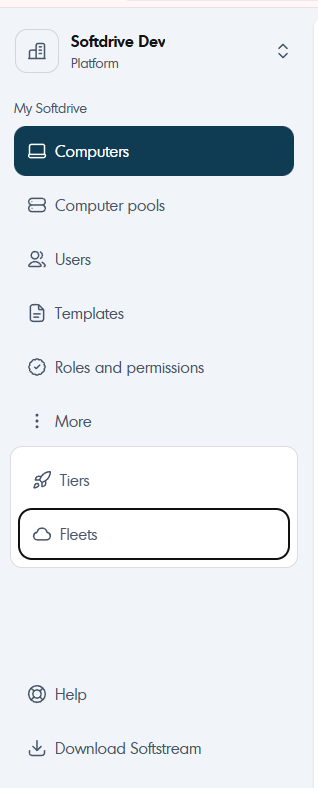
Once opened, you will be able to view all fleets available in your organization.
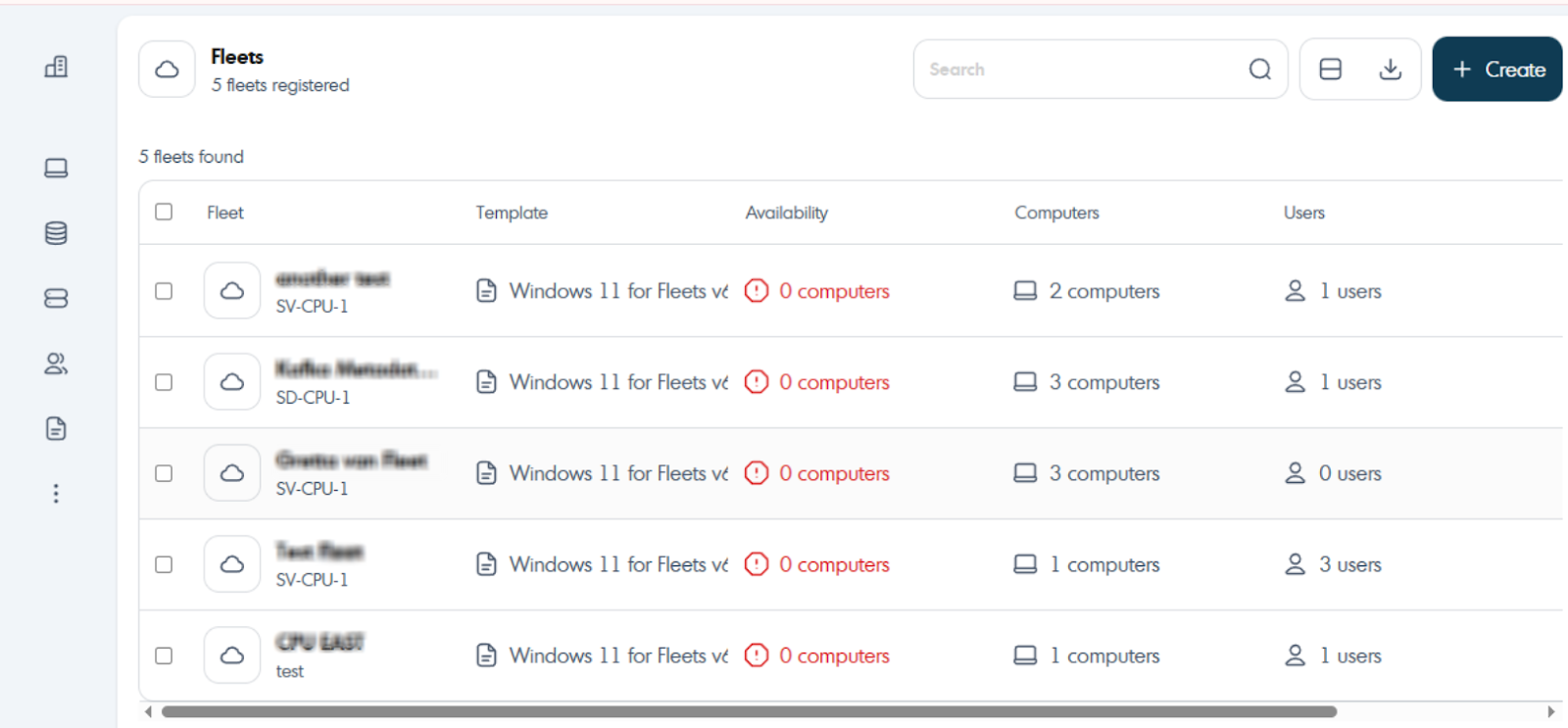
Managing computer fleets
When accessing a specific fleet, you can edit key features:
- The computer template
- The computer tiers (upgrade RAM, GPU, CPU resources)
- Users assigned to tiers
- Fleet configuration (Idle disconnect timer and Idle power-off timer)

When a fleet is selected, the virtual workstations belonging to it can be managed.
- Delete
- Turn on computers
- Turn off computers

3. Deleting a fleet
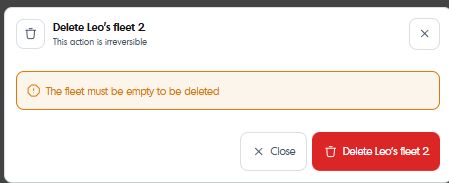
To delete a fleet, click Delete. Note: all computers within the fleet must be deleted before the fleet can be deleted.
4. Accessing fleets from the Softdrive launcher
From the Softdrive launcher, users will have access to a Fleets section where they can view all fleets assigned to them. Each fleet shows how many computers are currently available and provides an option to CLAIM a computer to begin a session.
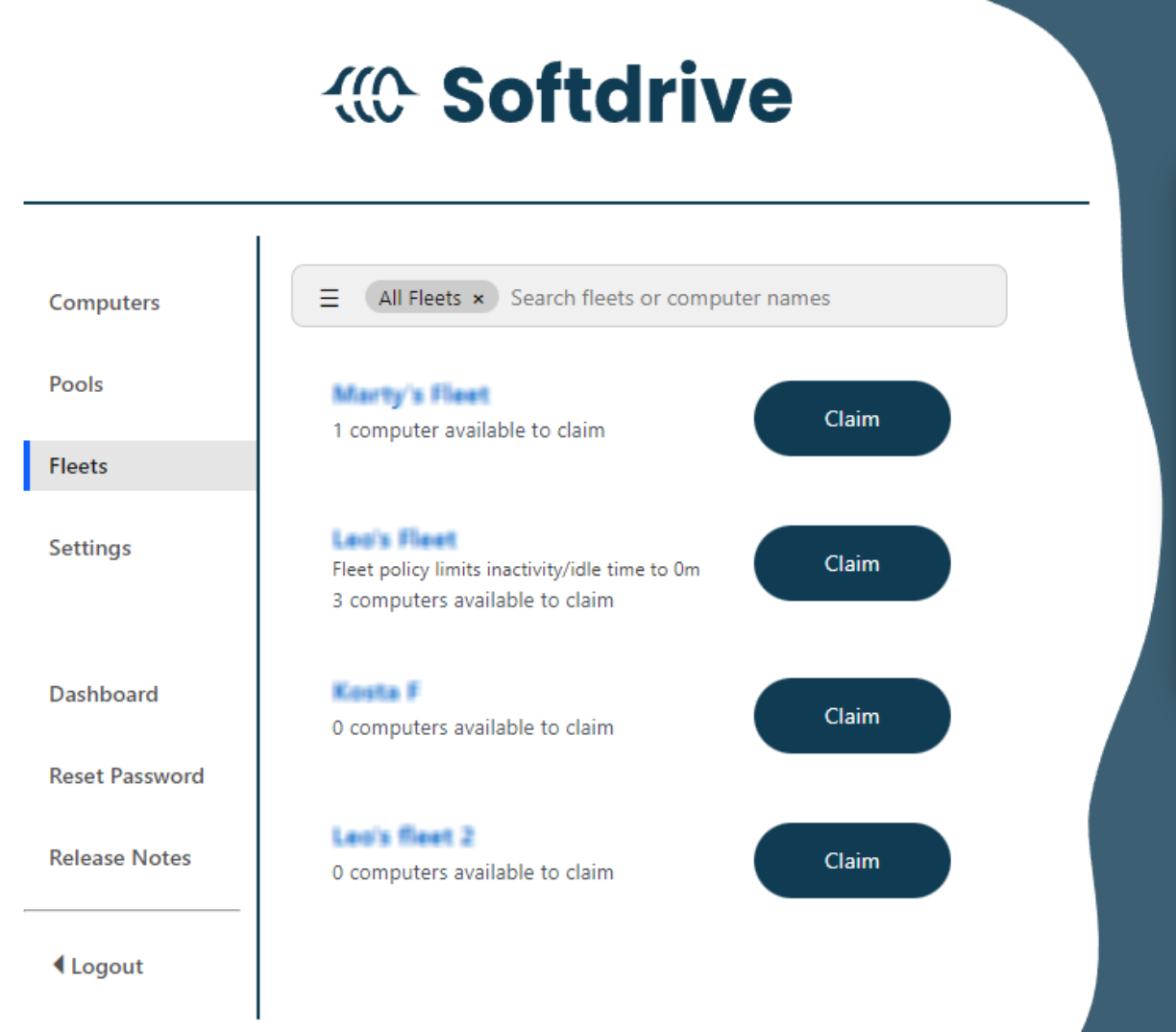
When a computer is turned off or the user disconnects, it automatically becomes available to be claimed again within the fleet.
Was this article helpful?
That’s Great!
Thank you for your feedback
Sorry! We couldn't be helpful
Thank you for your feedback
Feedback sent
We appreciate your effort and will try to fix the article