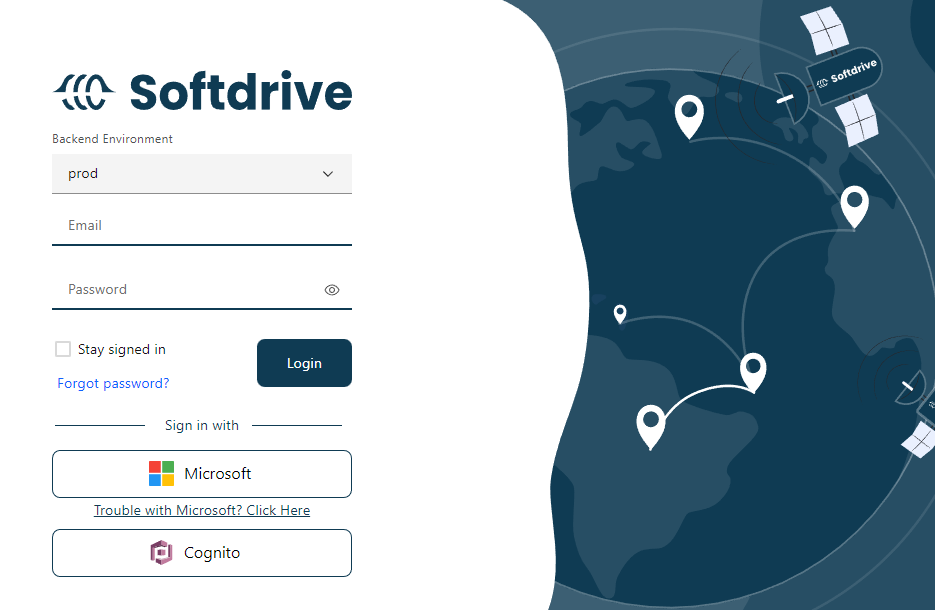
Overview
This guide explains how to configure Microsoft Entra ID (Azure AD) Single Sign-On (SSO) for Softdrive, including initial login, application setup, and user access configuration.
Applies To
- Softdrive Dashboard and Application
- Microsoft Entra ID (Azure AD)
- SSO Authentication
Prerequisites
- If using a local Active Directory, it must be synced with Entra ID
- Administrator access to Microsoft Entra ID
- The user must already exist in Softdrive with the same email address
Procedure
- Login to Softdrive using Microsoft Entra ID
- Open a browser and go to http://softnet.softdrive.co/
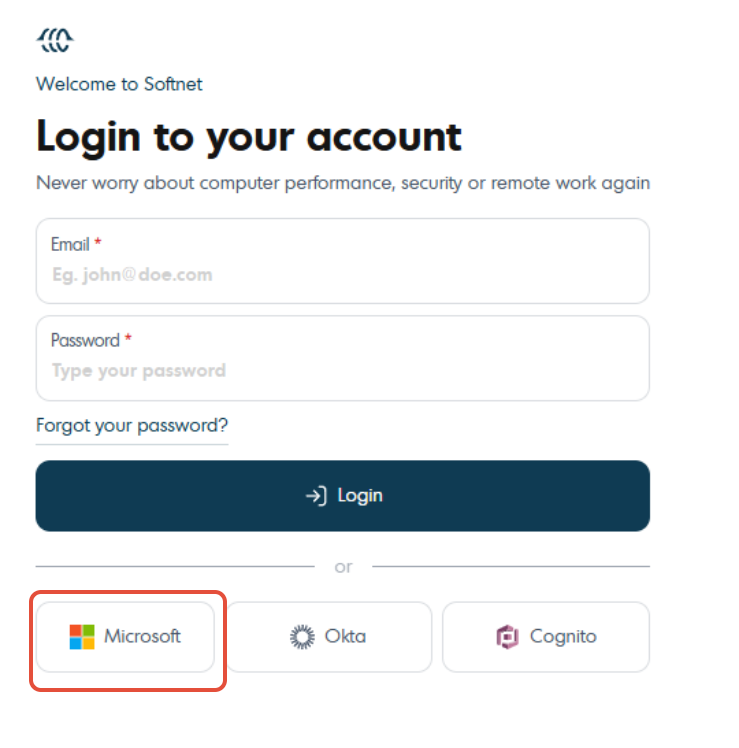
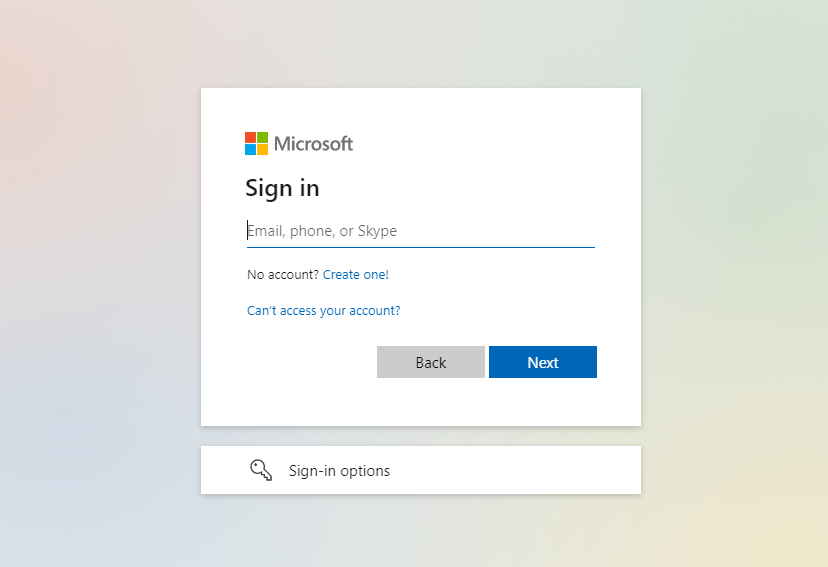
- Select "Sign in with Microsoft" and log in with administrator credentials
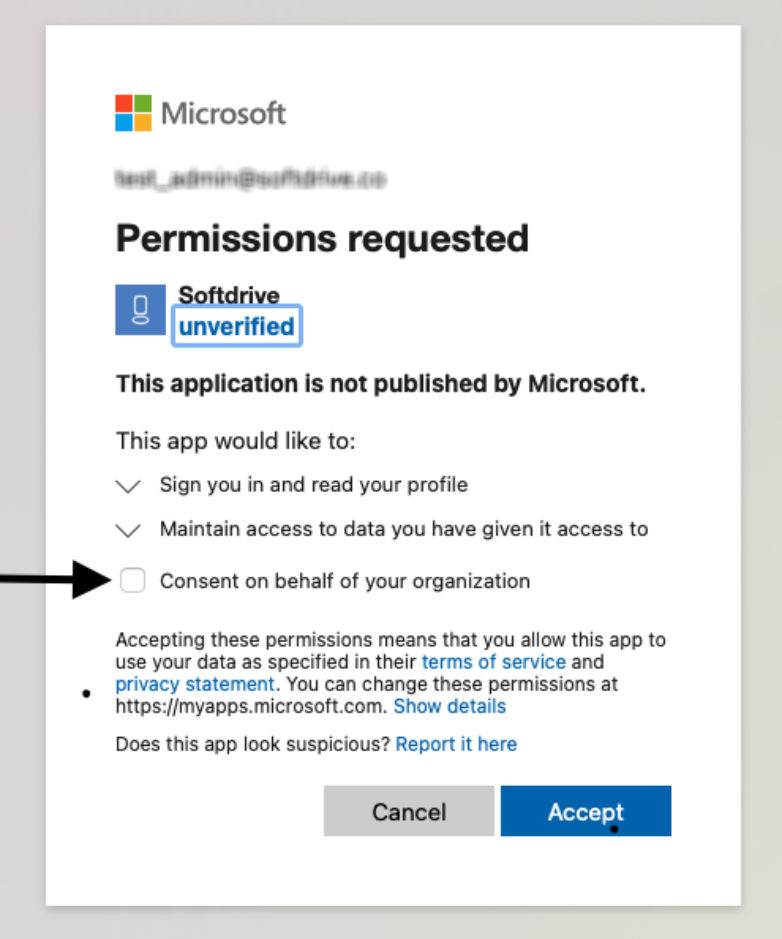
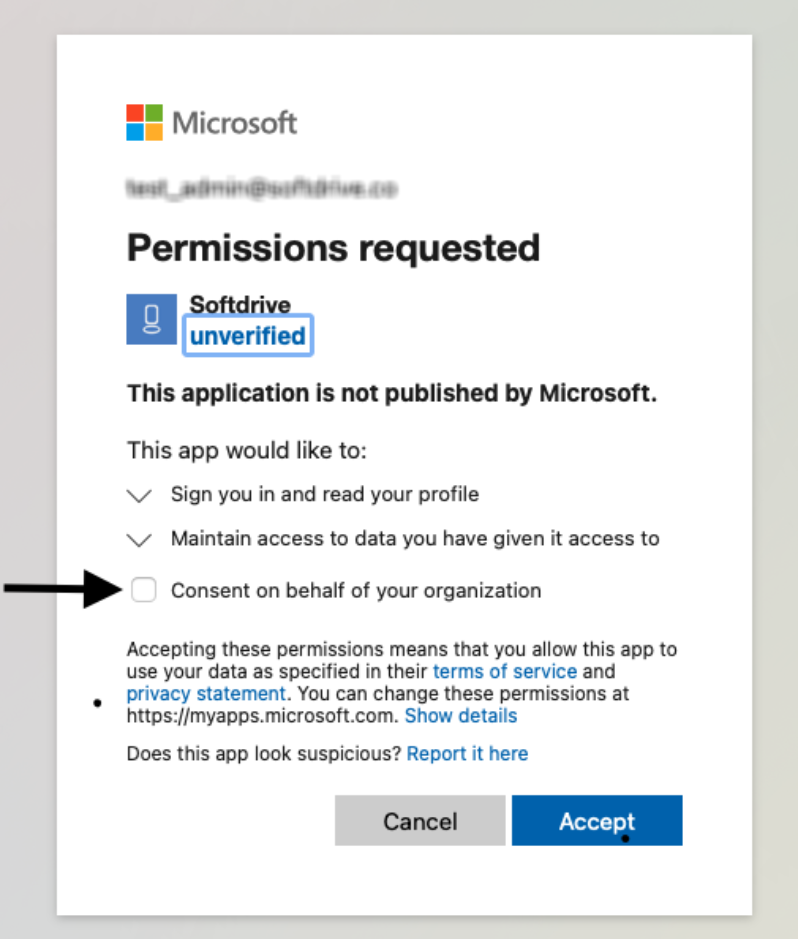
- Accept permissions and grant consent on behalf of the organization
- Configure Microsoft Entra ID application access
- Go to https://entra.microsoft.com and sign in
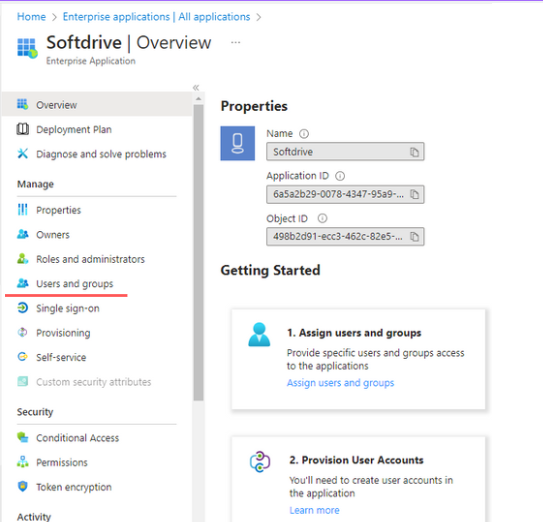
- Navigate to Enterprise Applications
- Search for "Softdrive" under All Applications
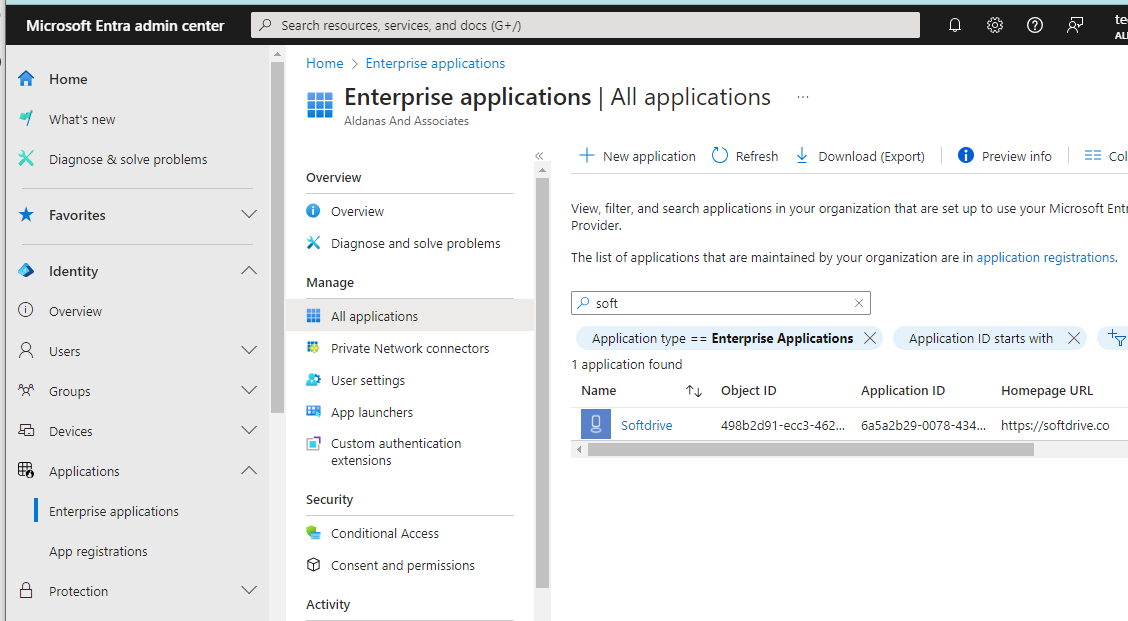
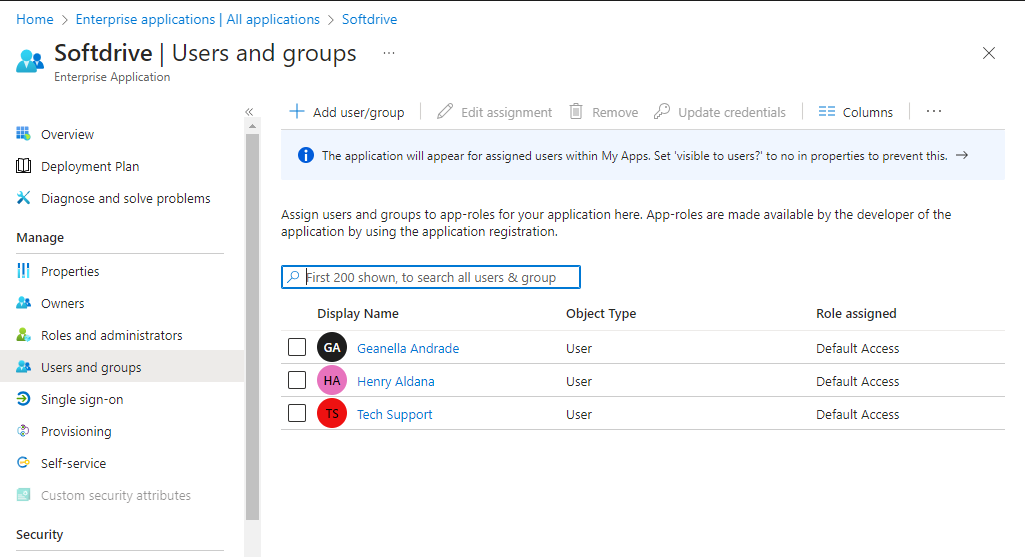
- Open the Softdrive application and go to Users and Groups
- Assign the required users or groups
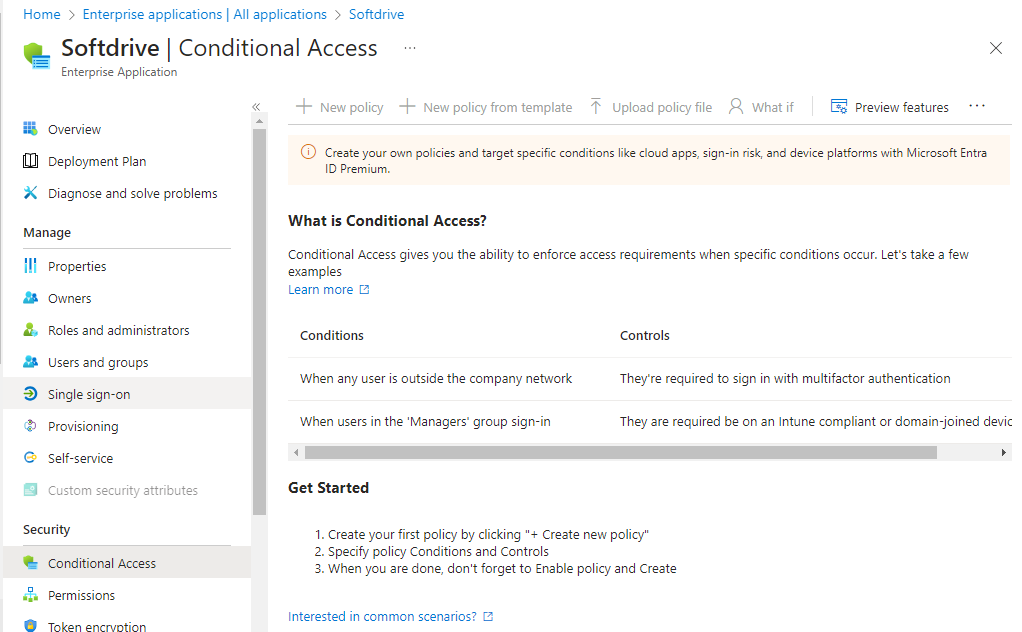
- Review Conditional Access policies if applicable
- Enable Microsoft SSO in Softdrive
- Go to https://dashboard.softdrive.co/
- Navigate to Settings → Authentication
- Enable Microsoft SSO

- Use Microsoft SSO to access Softdrive
- Open the Softdrive application and select "Sign in with Microsoft"
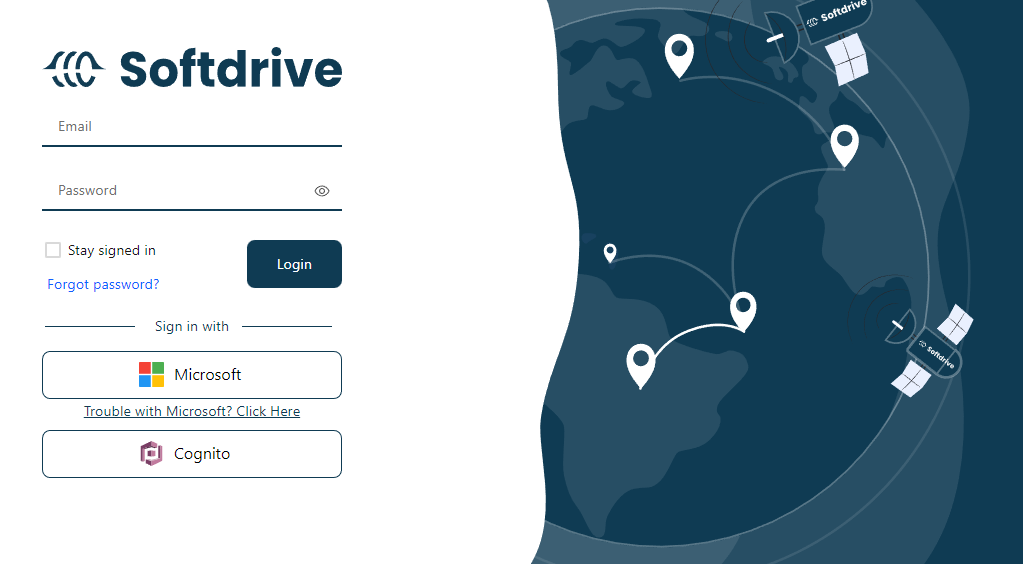
- Log in using Microsoft credentials
- Accept consent prompts if presented
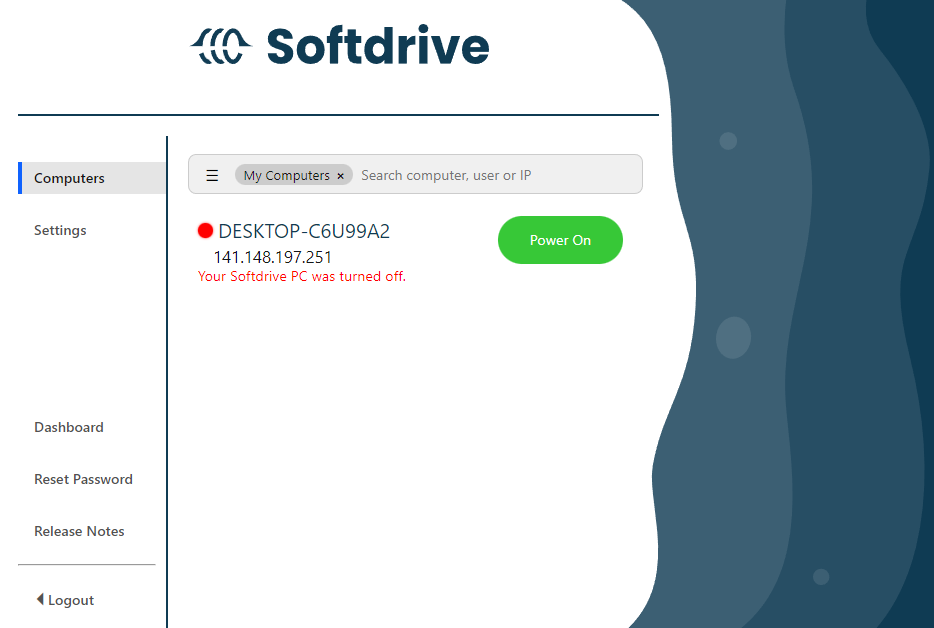
- Once authenticated, you should see your assigned computers
- Open the Softdrive application and select "Sign in with Microsoft"
Expected Result
Users can successfully authenticate using Microsoft Entra ID and access their assigned Softdrive computers without needing separate credentials.
Troubleshooting
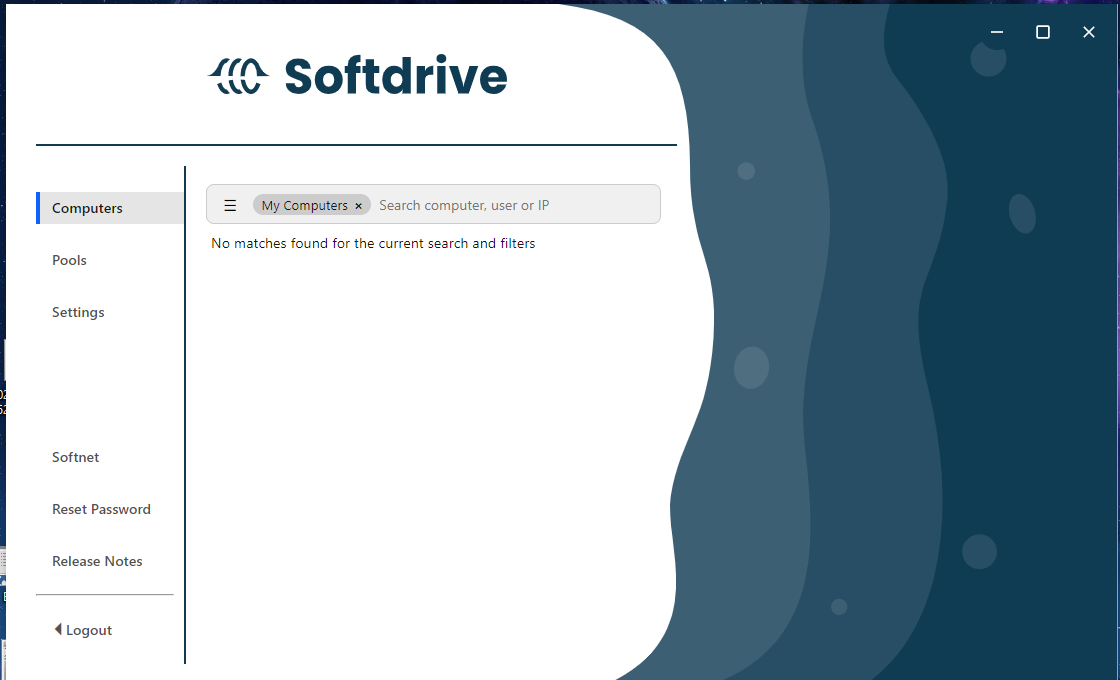
- If no computers are visible, confirm the user has been assigned a machine
- If you receive "No account is associated with the provided email", ensure the user exists in Softdrive