Overview
The Connection Diagnostic Report is a troubleshooting feature built into the Softdrive Launcher that helps identify potential connectivity issues when a virtual machine (VM) fails to connect.
When a connection fails, the Launcher provides access to a diagnostic report that checks connectivity to essential Softdrive services, including DNS resolution, network connections, signaling servers, and supporting services.
The report can help users and IT administrators identify which connectivity checks failed and provide useful information to Softdrive Support for further investigation.
Applies To
- Softdrive Launcher
- Softstream Connection Troubleshooting
- Network and Connectivity Diagnostics
How to Access the Diagnostic Report
- Open the Softdrive Launcher on your local computer.
- Navigate to the Computers section and attempt to connect to your virtual machine.
- If the connection fails, an error message will appear at the bottom of the Launcher.
- Click Diagnostic report in the error message.
- The Connection Diagnostics window will open, displaying the results of the available connectivity checks.
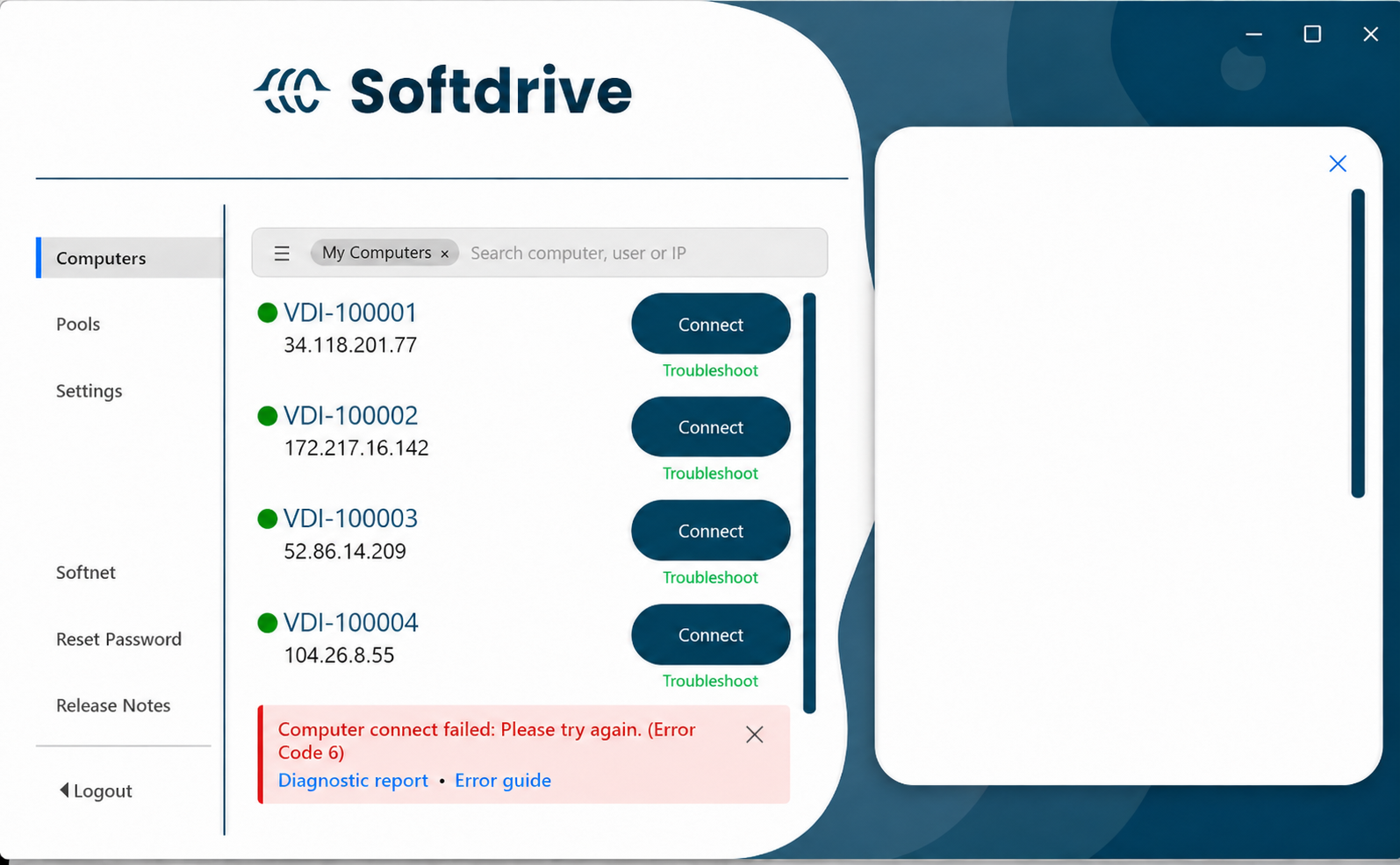
Note: The diagnostic report is available when the Launcher displays the corresponding connection failure message.
Understanding the Diagnostic Results
The Connection Diagnostics window displays individual checks performed against services required for Softdrive connectivity.
Each check includes a service name, diagnostic code, timestamp, and status.
- Pass (Green): The connectivity check completed successfully.
- Fail (Red): The connectivity check was unsuccessful and may require further investigation.
A failed check does not necessarily mean the corresponding service is unavailable. Network restrictions, firewalls, DNS configuration, routing, or other environmental factors may prevent successful communication.
Diagnostic Checks Explained
The report may include the following connectivity checks:
| Diagnostic Check | Description |
|---|---|
| Softnet DNS | Verifies that the Softnet service hostname can be resolved through DNS. |
| Softnet Connection | Checks connectivity to the Softnet service. |
| S3 Analytics DNS | Verifies DNS resolution for the analytics storage endpoint. |
| S3 Analytics Connection | Checks connectivity to the analytics storage endpoint. |
| S3 Crash Dump DNS | Verifies DNS resolution for the crash dump storage endpoint. |
| S3 Crash Dump Connection | Checks connectivity to the crash dump storage endpoint. |
| Signaling Server DNS | Verifies DNS resolution for the signaling server used during session establishment. |
| Signaling Server TCP Connection | Checks whether a TCP connection can be established to the signaling server. |
Example: Failed Signaling Server Connection
In the following example, most diagnostic checks completed successfully, but the signaling server TCP connection failed.
Diagnostic: Signaling Server TCP Connection
Diagnostic Code: 0x00040002
Status: Fail
Message: Failed to connect to signaling server via TCP
This indicates that the Launcher could not establish a TCP connection to the signaling server during the diagnostic test.
If the Signaling Server DNS check passes but the TCP connection fails, the hostname was resolved successfully, but the TCP connection could not be established.
Possible causes include:
- Firewall or security policies blocking the required connection.
- Network routing or connectivity issues.
- VPN, proxy, or Zero Trust security configurations interfering with the connection.
- Temporary unavailability of the destination service.
Viewing and Copying the Diagnostic Report
The Connection Diagnostics window provides two options for reviewing and sharing the results:
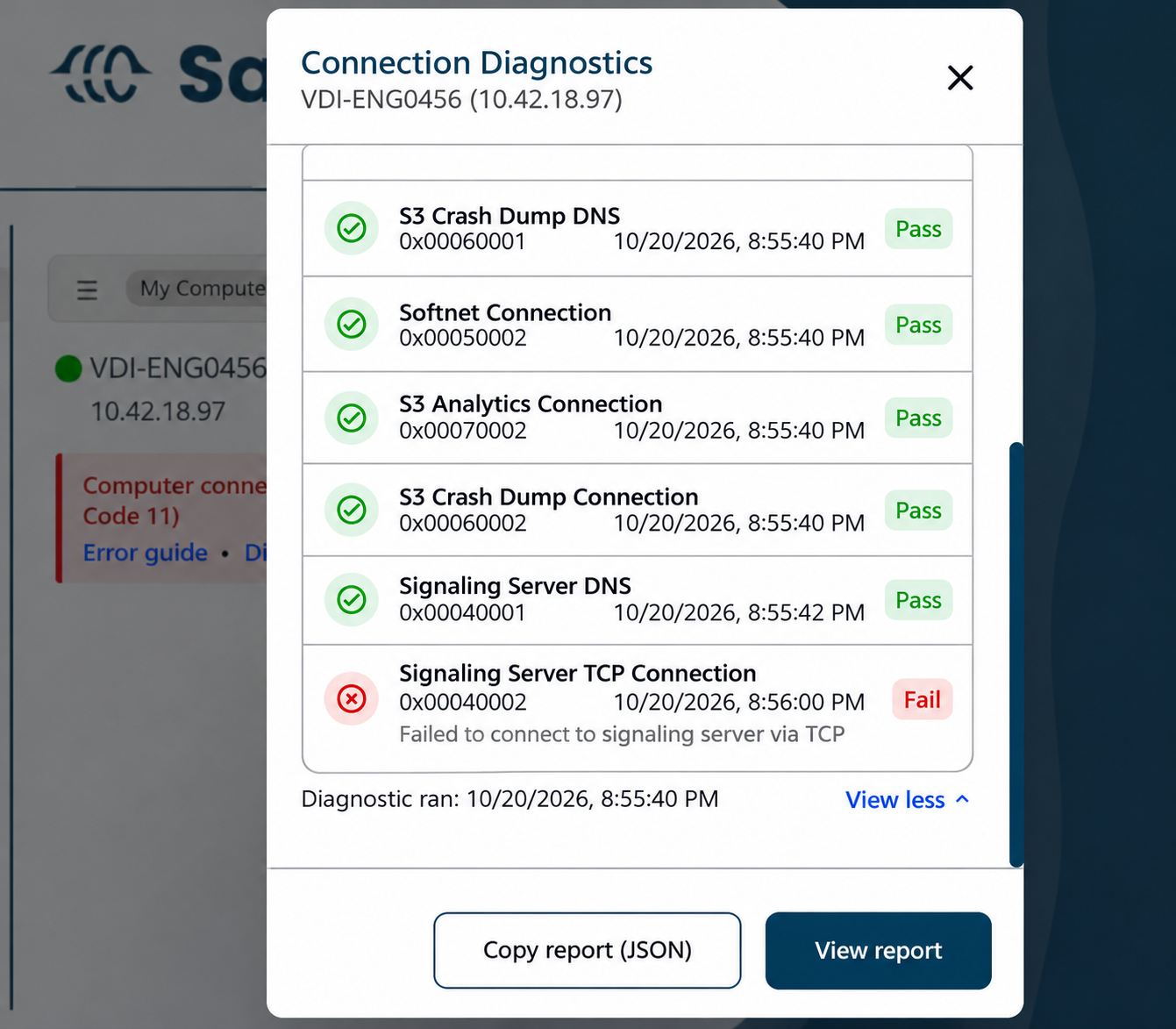
- View report: Opens the detailed diagnostic information, including the results and associated messages.
- Copy report (JSON): Copies the diagnostic results in JSON format, allowing users to share the information with their IT administrator or Softdrive Support.
The JSON report includes the following fields:
| Field | Description |
|---|---|
| code | Numeric identifier for the diagnostic check. |
| codeStr | Name of the diagnostic check. |
| message | Additional diagnostic details, when available. |
| state | Numeric status of the check. |
| stateStr | Readable status, such as Pass or Fail. |
| timestamp | Timestamp represented in milliseconds since the Unix epoch. |
| timestampStr | Human-readable timestamp of the check. |
Recommended Troubleshooting Steps
If one or more diagnostic checks fail, follow these steps:
- Review the failed checks and any associated error messages.
- Confirm that the local computer has a working network connection.
- If a DNS check fails, ask your IT administrator to verify DNS resolution for the affected service.
- If a connection check fails, ask your IT administrator to review applicable firewall, proxy, VPN, and network security restrictions.
- Retry the connection to determine whether the issue persists.
- If the issue continues, copy the diagnostic report and share it with Softdrive Support.
Contacting Softdrive Support
If you are unable to connect to your virtual machine after reviewing the diagnostic results, contact Softdrive Support and provide:
- The name of the affected virtual machine.
- The error code displayed in the Launcher.
- The copied Connection Diagnostic Report (JSON).
- The approximate date and time of the connection failure.
Providing this information helps Softdrive Support identify which connectivity checks failed and investigate the issue more efficiently.