Overview
Windows uses visual effects such as animations, fades, shadows, and transparency to make the desktop look polished, but each effect takes extra processing to draw. Setting Windows to Adjust for best performance turns these effects off, so the desktop responds faster, windows and menus open instantly, and more system resources are left for your applications.
Procedure
- Press Win+R on your keyboard
- Enter sysdm.cpl and click ok
- Click on the advanced tab and select Settings under the performance section.
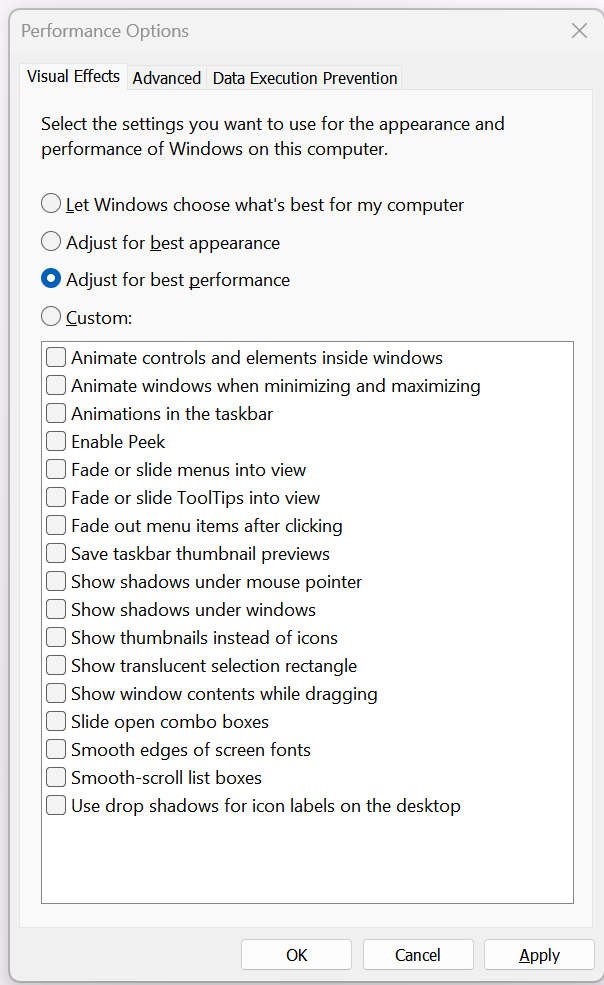
- Chose adjust for best performance and click ok.
Expected Result
- Turns off all visual effects: animations, fades, shadows, transparency, Peek, and live window dragging.
- Faster, more responsive desktop: windows, menus, and dialogs open and close instantly, using fewer system resources.